Dashboard
Dashboard Overview
The Dashboard is the home screen of QuakeOverlay. It appears when you first launch the app and provides an at-a-glance view of the entire system's status.
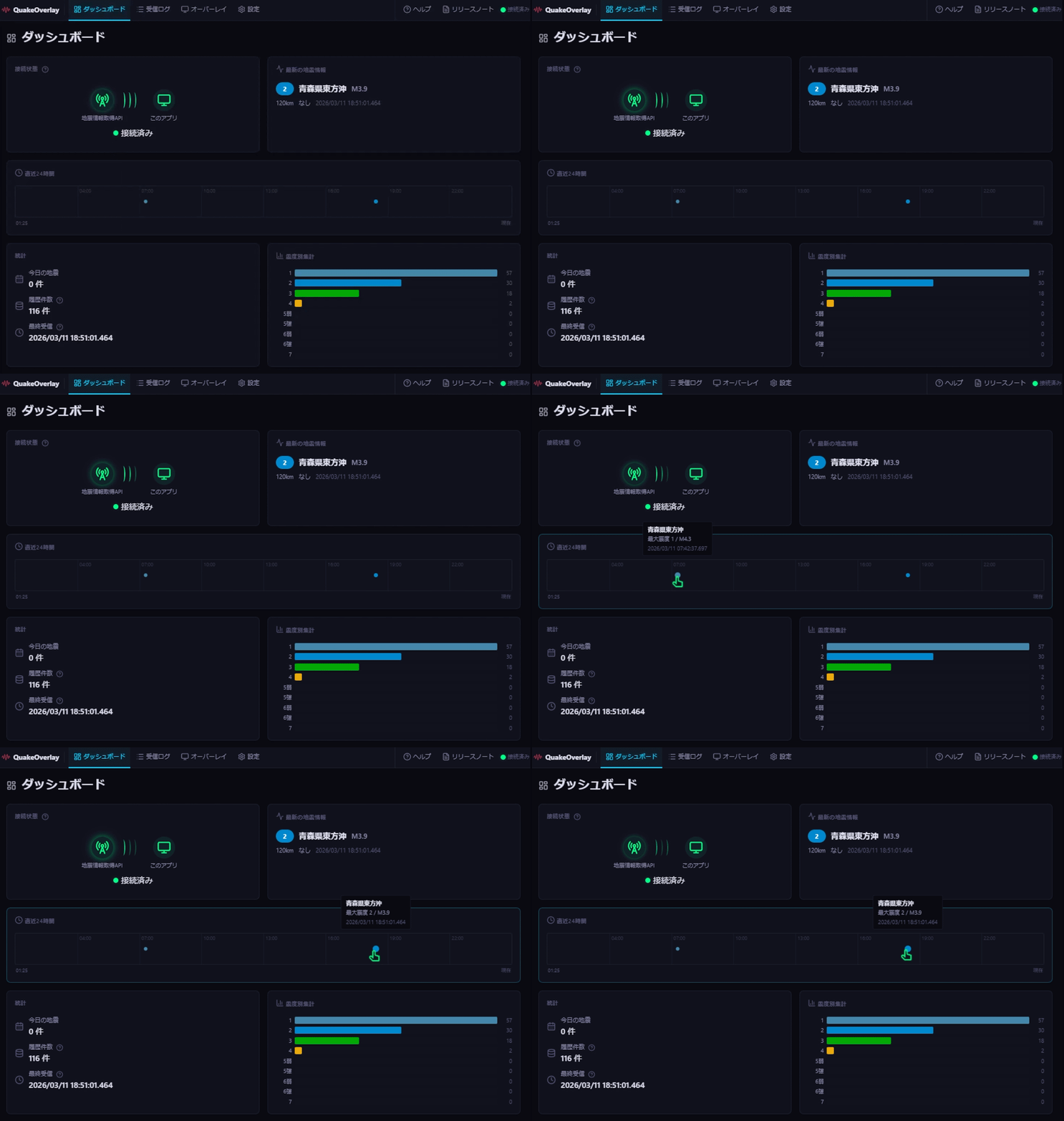
Key information such as connection state, recent earthquake data, and statistics are organized into easy-to-read cards.
Tab Bar Navigation
A tab bar is always visible at the top of the screen, giving you quick access to every section of the app from any page.

The tab bar includes the following menu items:
- Dashboard — Home screen (the current page)
- Monitor — Real-time earthquake monitoring
- Overlay — OBS overlay configuration and management
- Settings — Application settings
- Help — Help and support information
- Release Notes — Update history
Connection Status Card
This card displays the real-time connection status with the P2P Earthquake Information API. The current communication state is shown with an icon and descriptive text.
The connection state is displayed in four levels:
| State | Color | Description |
|---|---|---|
| Connected | Green | Successfully connected to the API |
| Connecting | Yellow | Attempting to establish a connection |
| Reconnecting | Orange | Trying to re-establish a lost connection |
| Disconnected | Red | Connection has been lost |
When the connection is lost, the app will automatically attempt to reconnect. If the status remains "Disconnected" for an extended period, check your network settings.
Latest Earthquake Info Card
The most recently received earthquake information is displayed in a card format. It includes the following details:
- Intensity badge — The maximum seismic intensity shown as a color-coded badge
- Epicenter name — The name of the location where the earthquake originated
- Magnitude — The scale of the earthquake
- Depth — The depth of the epicenter
- Tsunami info — Tsunami-related information, if applicable
Click the card to view the full earthquake details.
24-Hour Timeline
This section displays earthquake events from the past 24 hours in chronological order. The visual timeline chart helps you quickly understand the frequency and timing of recent seismic activity.
This is useful for getting a sense of how earthquake activity has been trending throughout the day.
Statistics Cards
At the bottom of the Dashboard, you will find statistics cards summarizing earthquake data at a glance.
| Card | Description |
|---|---|
| Today's earthquake count | Number of earthquakes received today |
| Total history count | Total number of earthquake events received since installation |
| Last received time | Date and time of the most recently received earthquake |
| Max intensity | The highest seismic intensity observed in the history |
These statistics update automatically as new data is received.
Directory Health Check
If required folders (such as overlay and theme folders) are missing, a warning banner will appear at the top of the Dashboard. If you see this warning, try reinstalling the app.
Initial Data Fetch Banner
When you launch the app for the first time, a banner appears at the top of the Dashboard showing the progress of historical data retrieval.
The banner displays the following information:
- Data fetch progress (percentage)
- Number of events fetched so far
- Current status
The fetch status can be one of the following:
| Status | Description |
|---|---|
| Fetching | Data is being retrieved |
| Complete | All data has been successfully fetched |
| Partial | Some data could not be fetched (yellow warning) |
| Failed | Data fetch failed (a retry button is displayed) |
Once the initial data fetch is complete, the banner will automatically disappear. You can continue using the rest of the app normally while the data is being retrieved.