Overlay Settings
Overlay Settings Overview
The Overlay Settings page lets you manage two types of overlays for your OBS setup. Use the tabs at the top of the page to switch between them and configure each overlay independently.
- Alerts tab — Configure earthquake alert display settings
- Map tab — Configure earthquake map display settings
Both overlays can be used simultaneously in OBS.
Alerts Tab
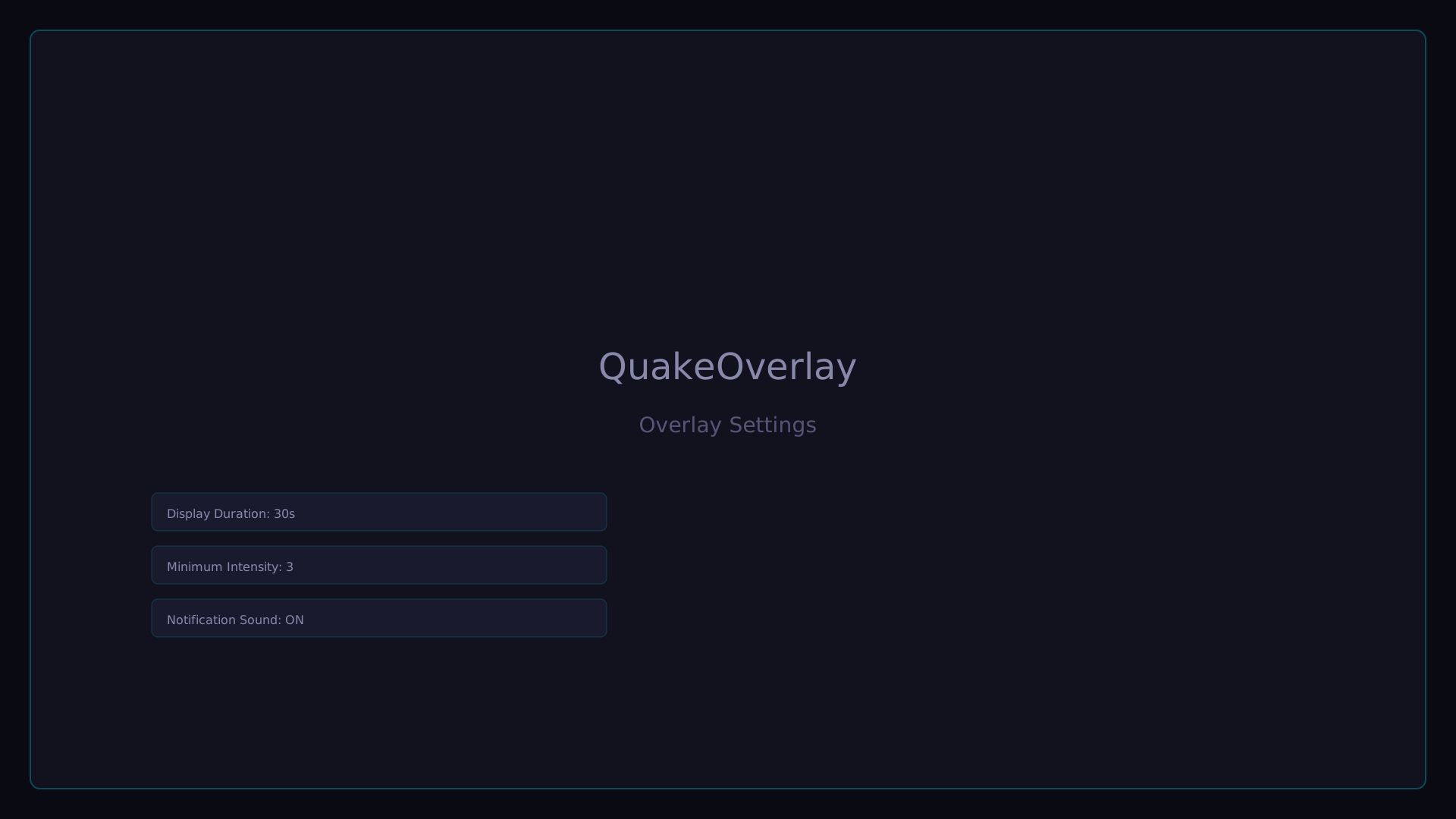
The Alerts tab allows you to customize the appearance and behavior of the earthquake alert overlay.
Theme Selection
Choose from the following themes using the dropdown menu:
- news — Broadcast news-style design
- minimal — Clean, understated design
- impact — Bold, high-impact design
- kawaii — Cute, pop-style design
Depending on the theme, the layout type switches between banner (horizontal) and card (vertical).
Additional themes such as onyx are also available for purchase. More themes are planned for the future. See the Theme Customization documentation for details.
Overlay URL
Click the "Copy URL" button to copy the following URL to your clipboard. Set this URL as a Browser Source in OBS.
http://localhost:47815/overlay/alerts/
The URL is displayed on the "Overlay" page in the app. Since the port number may vary depending on your environment, we recommend copying the URL directly from the app.
Live Preview
A live preview on the right side of the settings page shows your current configuration in real time. Changes are reflected instantly, so you can fine-tune the appearance without opening OBS.
Customization Options
The following settings are available for customization:
| Setting | Default | Options / Range |
|---|---|---|
| Position | bottom | top / bottom / center |
| Background color | theme-dependent | Color picker |
| Accent color | theme-dependent | Color picker |
| Border color | theme-dependent | Color picker |
| Text color | theme-dependent | Color picker |
| Opacity | 90 | 0–100% |
| Padding | 100% | 50–200% |
| Font size | 100% | 50–200% |
| Animation speed | 100% | 50–200% |
| Font | default | 12 fonts (see Theme Customization docs) |
| Animation | default | default / fade / float / blur / slide / bounce |
| Animation direction | up | up / down / left / right |
| Stack method | card | banner / card / timeline / ticker / replace |
| Max display count | 2 | 1–5 |
Action Buttons
- Save — Save your current settings
- Reset — Restore all settings to their default values
- Test — Send a sample earthquake event to preview the overlay in action
Map Tab
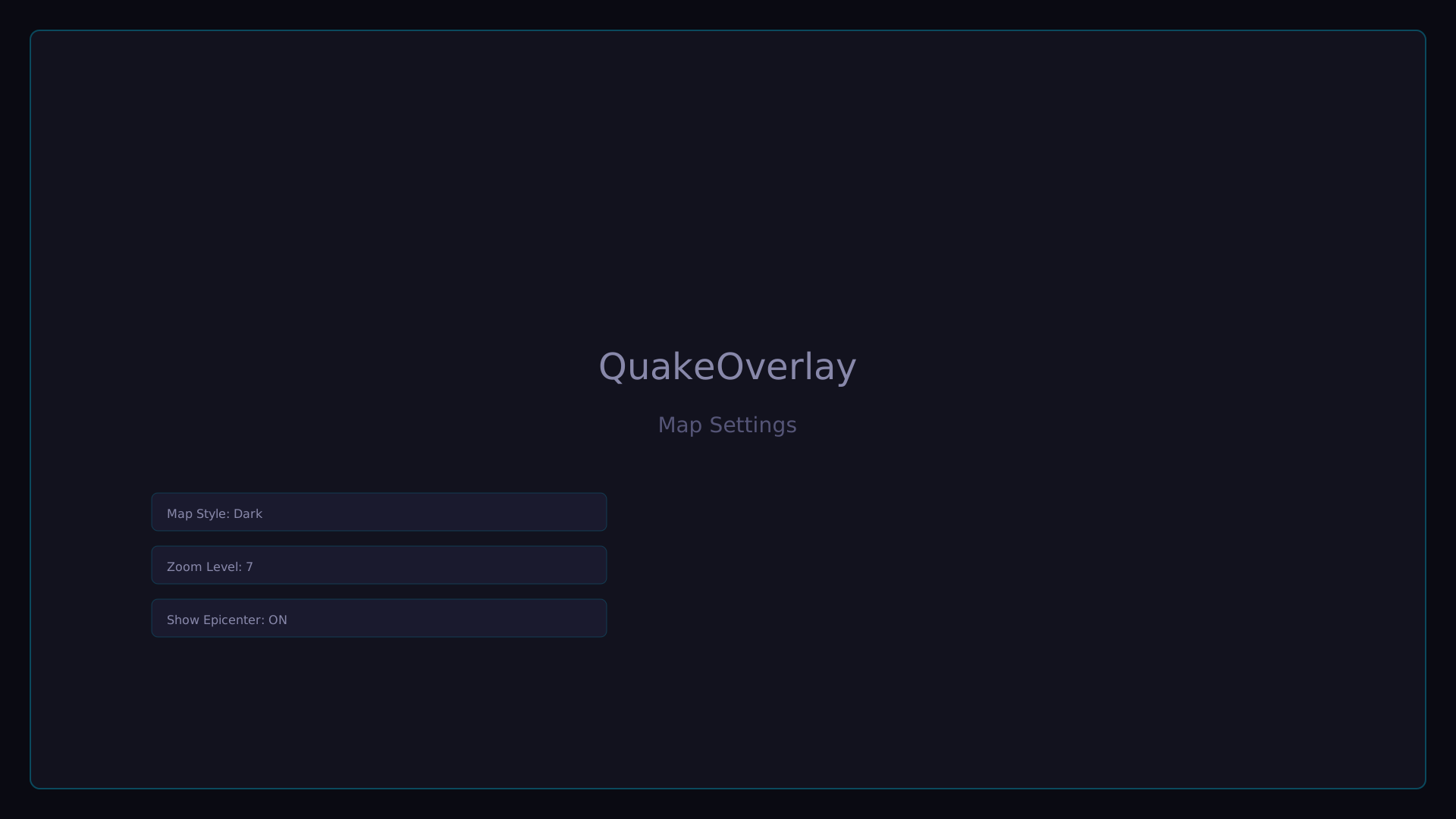
The Map tab lets you customize the appearance of the earthquake map overlay.
Map Theme Selection
As with the Alerts tab, you can choose from the following themes:
- news
- minimal
- impact
- kawaii
Additional map themes such as onyx are also available for purchase. More map themes are planned for the future.
Map Overlay URL
Click the "Copy URL" button to copy the following URL to your clipboard.
http://localhost:47815/overlay/map/
The URL is displayed on the "Overlay" page in the app. Since the port number may vary depending on your environment, we recommend copying the URL directly from the app.
Map Preview
A live preview of the map overlay is displayed, reflecting your theme and customization changes in real time.
Map Customization Options
For detailed customization options for the map overlay, refer to the Theme Customization documentation.
Map Action Buttons
- Save — Save your current settings
- Reset — Restore all settings to their default values
Unsaved Changes Warning
If you navigate away from the page with unsaved changes, a warning dialog will appear. You can choose to save your changes or discard them before leaving.
Tips
- For detailed customization options, refer to the Theme Customization documentation
- Both the Alerts and Map overlays can be used simultaneously in OBS
- The Test button sends a sample earthquake event so you can preview how the overlay looks in action